
Authors of Log Notes will now be able to ‘Edit’, and ‘Delete’ log notes that they have created. Team Members will not be able to edit or delete each other’s notes as a result of these changes. An 'deleted' note will be removed from visibility on the application, but will remain present in Ameego’s database. A history log of these activities will be kept, and there will be no ability to undelete a note after it has been deleted. The ‘Edit’ and ‘Delete Note’ buttons are only visible to the user that created the note.
Follow the steps below to edit a log note:
- The user who created the note must log into Ameego and navigate to Intel, then click the ‘Logbooks’ tab.
- Select the date the note was created by using the calendar option.
- Click on the applicable logbook name.
- Locate the log note you created. You will see ‘Edit’ and ‘Delete’ buttons under all the notes that you created.
- Click on the ‘Edit Log Note’ button and make the necessary changes.
- Click the ‘Edit Note’ button to save the changes or cancel to discard the changes.
Here is a screenshot of where you can find the ‘Edit’ and 'Delete' buttons: 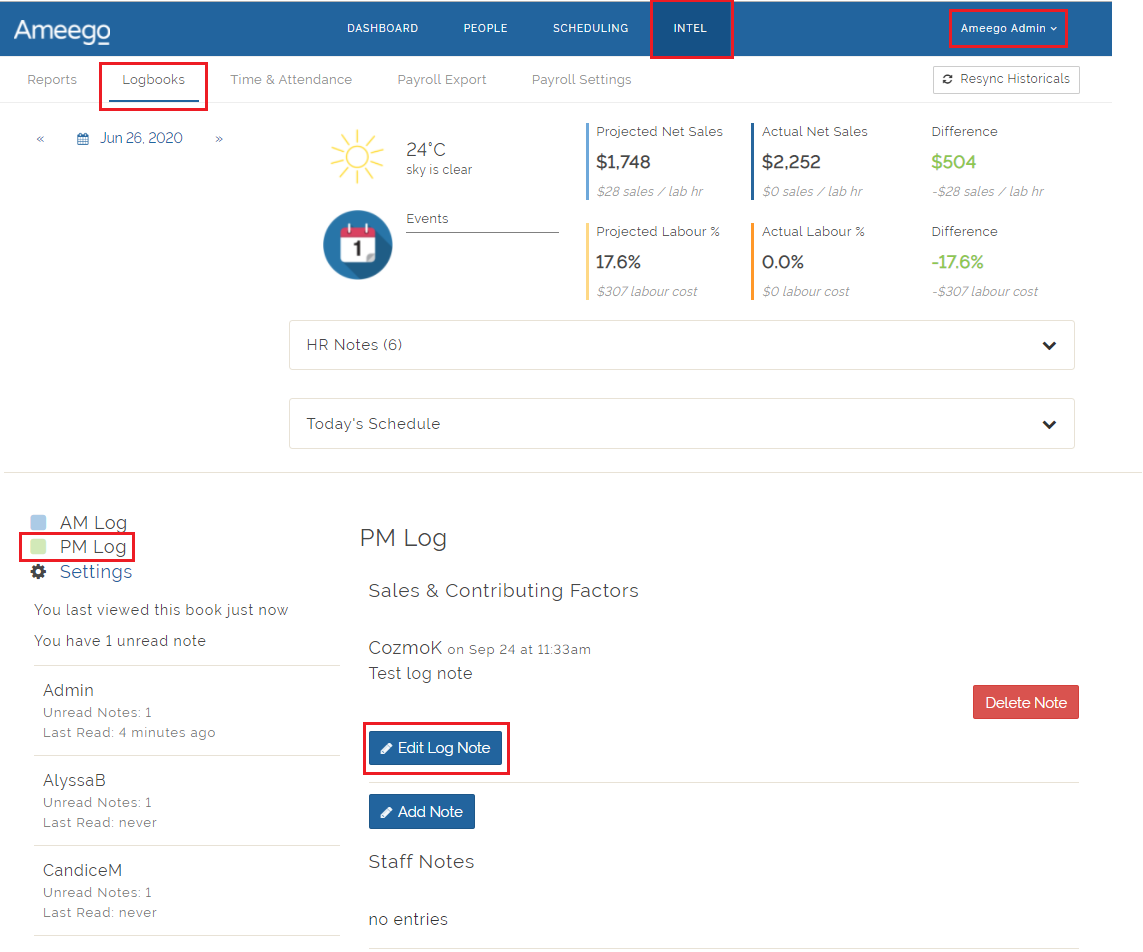
Follow the steps below to delete a log note
- The user who created the note must log into Ameego and navigate to Intel, then click the ‘Logbooks’ tab.
- Select the date the note was created by using the calendar option.
- Click on the applicable logbook name.
- Locate the log note you created. You will see ‘Edit’ and ‘Delete’ buttons under all the notes that you created.
- Click on the ‘Delete Note’ button to delete the note.
-
- You will not be able to undelete the note
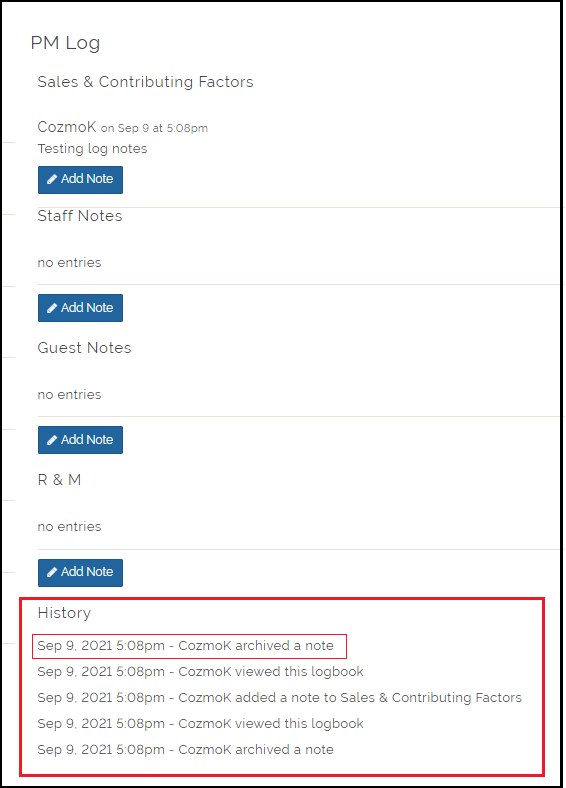
- The history log below will display that a note has been deleted
-
Comments
Please sign in to leave a comment.